
What DeepVideo 2.0 Actually Feels Like: One Video, From Download to Final Cut
Free quota
100% local processing
Subtitles are the real work
Limits stated up front
The short version
Spec sheets go numb after a while. Core counts, multipliers, scores — none of it tells you whether tomorrow’s job will actually feel smooth. So this is written the other way around: take one video, feed it in, get it back out, and record only what you see, how long you wait, and where you still have to do the work yourself.
- No card to start. New users get a one-time 18-minute free session, then 2 free minutes every day. That is enough to push one short video all the way through.
- Everything runs on your own machine, and the video never leaves it. The upside is no uploads and no cloud queue. The cost is that speed depends on your computer.
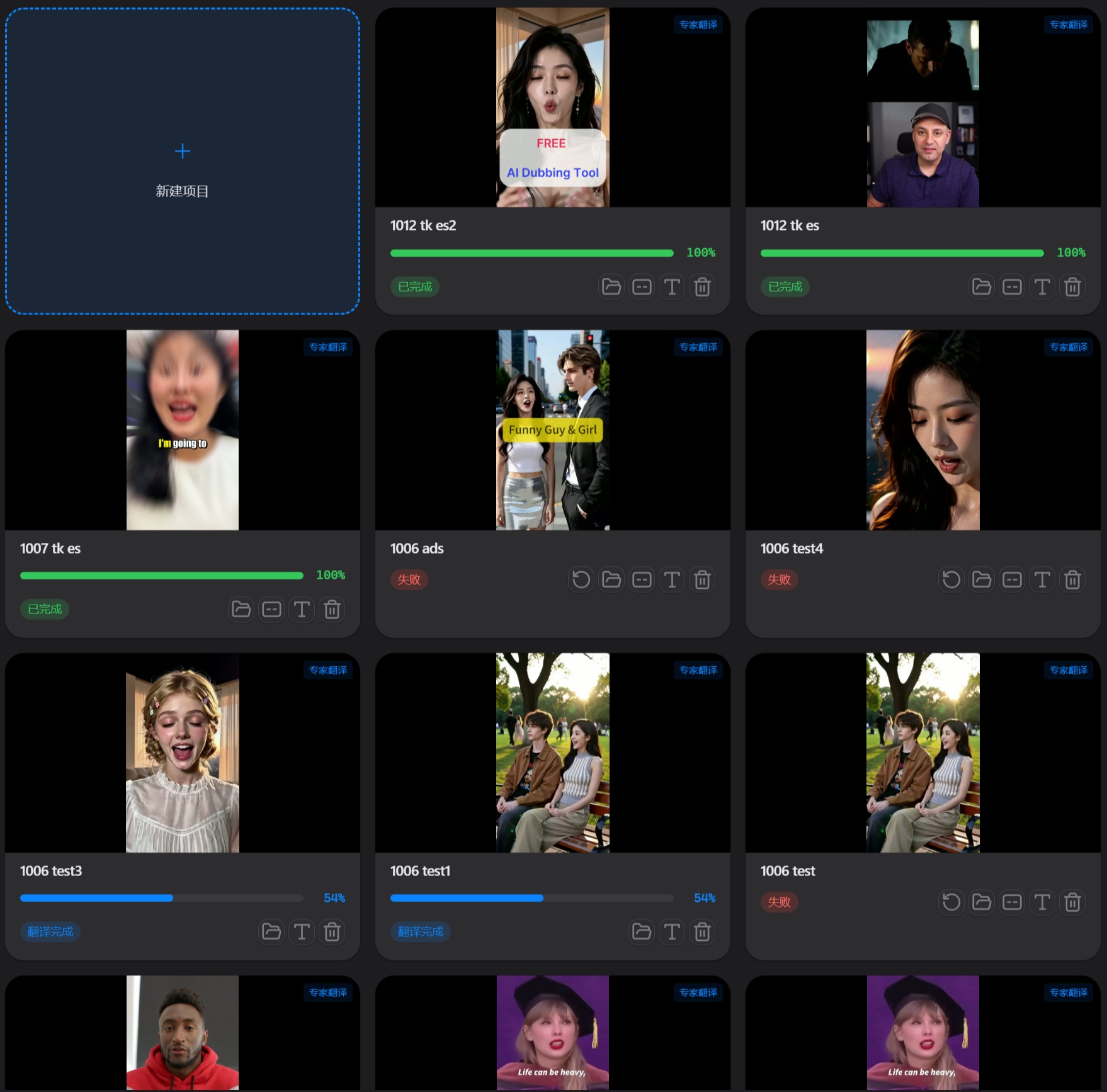
- 2.0 made getting started almost trivial. Quick Translation is pick-a-video, press translate. If you want finer control, switch to Expert Video Translation — it even pauses after translation by default so you can review subtitles before synthesis runs.
- Your time really goes into the subtitle editor, and that part is much better than it was. Per-line regeneration, per-line playback, 50 levels of undo, SRT import — all there.
- It does not do lip-sync, and there is no mobile app or API. Those three are in Chapter V, before you install rather than after.
I. First, Decide How Much Work You Want To Do: Four Project Types
In 2.0 the first fork in the road is not “which language” but “which kind of project”. The four types differ mainly in how many decisions you want to make up front.
| What I want to do | Pick this | Why |
|---|---|---|
| Translate a video as fast as possible | Quick Translation | Defaults work out of the box — pick a video, hit translate, wait |
| Control translation style, terminology, multiple speakers, emotion | Expert Video Translation | All the advanced options live here: translation style, target industry, glossary, multi-speaker mode, emotion recognition |
| Skip dubbing, just burn recognized subtitles into the picture | Video Subtitles | No speech synthesis involved, so it is the fastest and the most quota-friendly |
| A multi-speaker conversation where each voice should differ | Video Dubbing | A two-stage pipeline built specifically for multiple speakers |
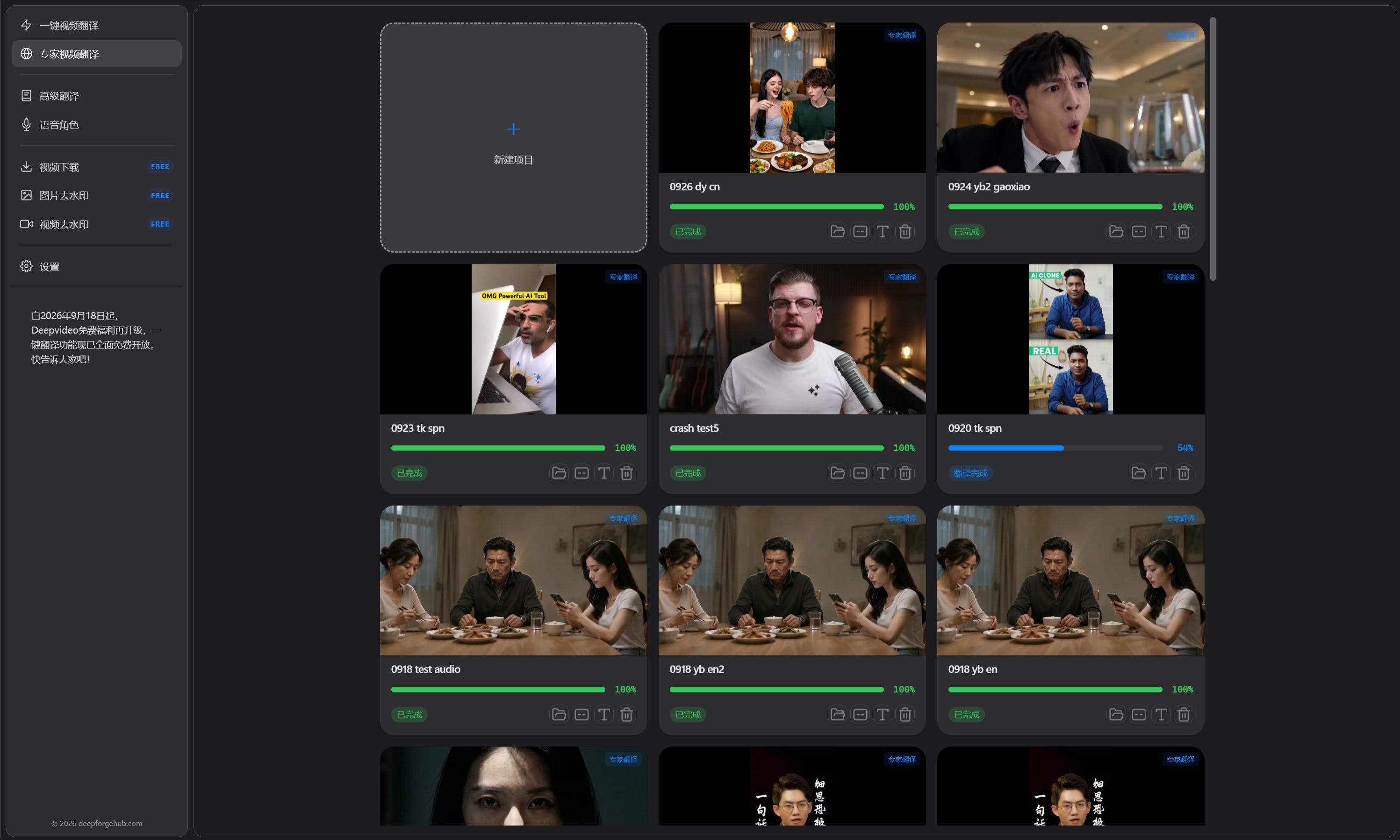
All four share one workflow: Create → Configure → Auto-process → Edit subtitles → Generate the final video. Learn one and you have learned them all.
Configure→
Vocal separation→
Recognition→
Translation→
Speech synthesis→
Mux→
Review / Export
One default setting that saves money
Expert mode ships with “Pause After Translation” switched on: the pipeline stops the moment translation finishes and waits for you to review the subtitles before dubbing. Fixing a mistake at the subtitle stage is the cheapest it will ever be — fixing it after synthesis means spending another round of quota. Leave it on unless you fully trust the defaults.
II. The First Launch: Download, Startup, and Free Quota
The download page offers three packages: a Windows EXE installer, a Windows portable ZIP, and a macOS DMG. The portable build is friendlier if you just want to try it — nothing written to the registry, delete the folder when you are done. Every package carries a VirusTotal report link next to it, so you can check the scan result before running anything.
You do not pay to start. New users get a one-time 18-minute free session, then 2 free minutes per day — enough to walk one short video from recognition to final output. On the free tier a single video is capped at 1 minute, so treat it as a way to test the workflow, not to produce at volume.
Startup is a different sensation entirely in 2.0
2.0 was rebuilt as a native desktop app on Tauri 2 + Rust, dropping the old “spin up a Python service first” approach. The result: the interface skeleton is visible in about 73 milliseconds, versus roughly 5.6 seconds on 1.x. It sounds like a number, but day to day it is the difference between “it opens” and “it opens and you wait for a spinner”.
(1.x was ~5.6s)
for new users
no card required
Windows and macOS
III. While It Runs: The Upside and the Cost of Local Processing
“100% local processing, never uploaded to the cloud” is the single most consequential product decision DeepVideo made. It produces two very visible differences.
The video never leaves your computer, so there is no upload bar and no cloud queue or rate limit; it works offline; and for footage under contract, client confidentiality, or an unreleased campaign, that matters more than saved minutes. It also makes the bill predictable — you pay for quota, and the compute is your own.
Local inference means no server absorbs the heavy lifting for you. The same clip can differ by an order of magnitude depending on whether you have a discrete GPU and whether TTS is set to fast or quality. That is not a software defect, but it is time you actually wait.
III.1 Where the time actually goes
We ran step-level timing on an ordinary laptop with no discrete GPU (i5-1135G7 / 16GB). The result is unusually concentrated:
In felt terms: a video of about 35 seconds averaged 4 min 53 s at fast settings; switching TTS to quality pushed that to 9 min 38 s. Going the other way — quality down to fast — shortens the whole pipeline by 60–75%. It is the single most effective switch in the app. With models already warm the gap widens further: an 18-second clip finished in 49 seconds.
III.2 Recognition and voices: two things that change the output
- Recognition routes by language. Chinese, Cantonese and Japanese go to SenseVoice; everything else goes to Whisper. The visible improvement is far fewer homophone errors in Chinese, and Cantonese no longer being forced into Mandarin. Output carries word-level timestamps, so subtitles align more precisely.
- Vocal separation now defaults to RoFormer. Background music survives better, female vocals get cut off less, and narration stops getting swallowed. It also drops memory for 45-minute audio from 3.4GB to 70MB — on an 8GB machine that is the difference between running and not running.
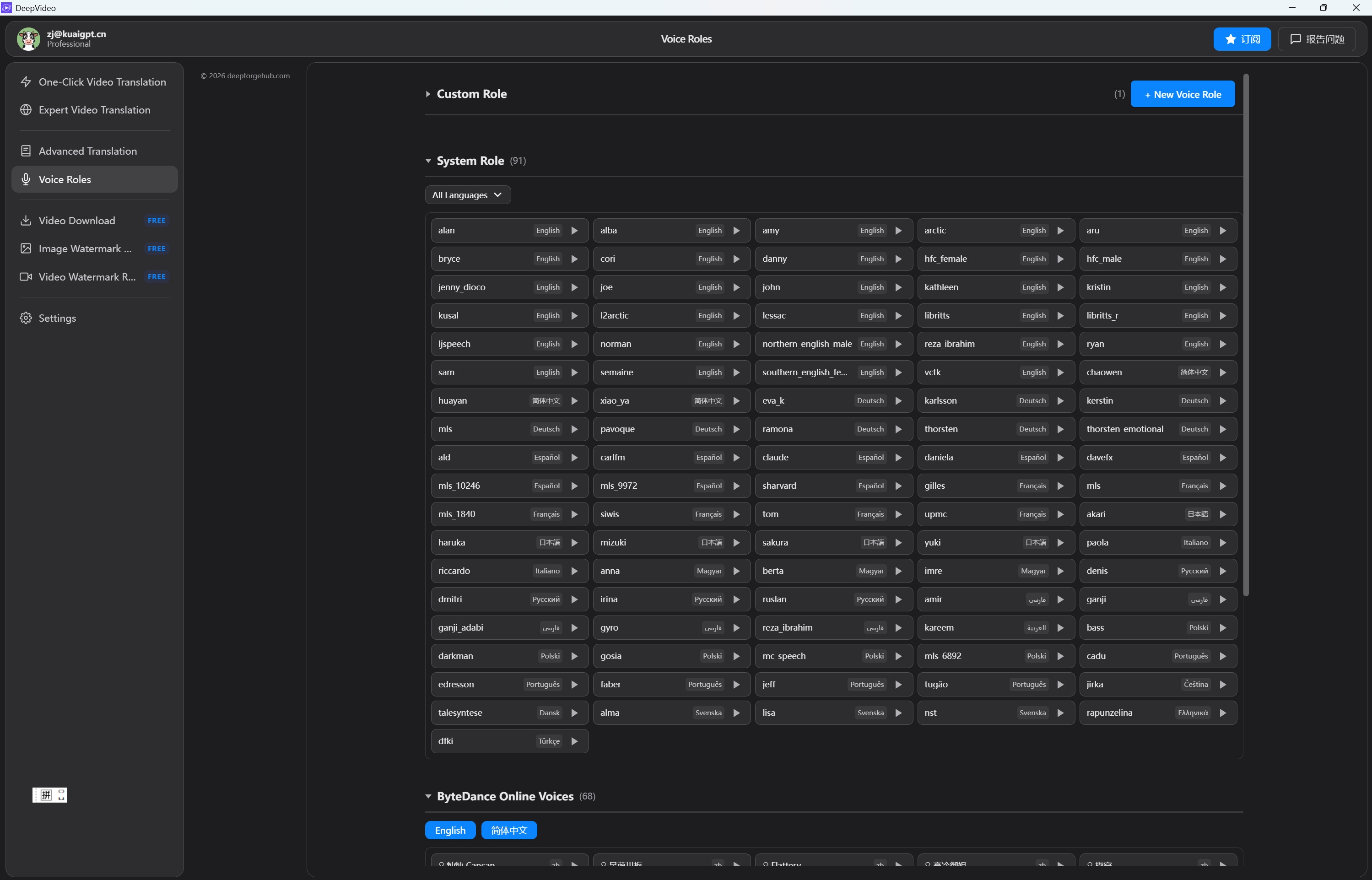
- Voice cloning needs very little material. The Chatterbox engine clones from 4.5–6 seconds of reference audio, with per-segment speed control and loudness normalization. The built-in voice library spans 10 languages and 8 categories (characters, narration, business, education, entertainment, news, stories, animals).
IV. Where Your Time Actually Goes: Editing Subtitles
Letting the pipeline run is only the first half. Most of the quality gap is decided in the thirty seconds you spend in the subtitle editor. 2.0 folds nearly every action into one table:
| What you want to do | How you do it |
|---|---|
| Fix one translated line | Click the “Translation” cell in that row and edit in place |
| Hear how the original line sounded | Press the ▶ play button on that row |
| Re-dub only that line | Press ↻ Regenerate — only that segment’s speech is re-synthesized, not the whole track |
| That line reads too fast or slow | Edit the “Speed” column, e.g. 1.2x |
| Redo the translation wholesale | “Re-translate All” with the current settings |
| Use my own subtitle file | “Import SRT” replaces the generated subtitles |
| Find one specific line | Ctrl+F searches every subtitle |
| Undo a mistake | Ctrl+Z, up to 50 levels; or “Discard Changes” to roll everything back |
A few design details that are easy to miss and genuinely useful:
- “Generate Video” only re-runs what is necessary. Subtitles already translated are not charged again; change one line and only the related audio is regenerated. What pops up is a prorated billing confirmation, not a full recompute — which is where quota really gets saved.
- The left panel changes settings without rebuilding the project. Language, model, voice and subtitle styling are all editable any time, and take effect when you press “Generate Video”.
- Leaving the page is guarded. Unsaved edits trigger a confirmation dialog, so a stray back button does not cost you the work.
- Subtitle styling is controllable. Source / translated / bilingual, with adjustable size, background, font and position. For bilingual output you can also choose whether the translation sits above or below the original.
V. What It Can’t Do For You
Better to know before you buy than after you install. These are DeepVideo 2.0’s explicit boundaries — and part of why the price sits where it does.
Six things to read before you buy
- No lip-sync. After dubbing, the speaker’s mouth keeps its original shape. If you need lips to follow the new audio, you need a separate tool — or a cloud platform that offers lip-sync, which typically costs an order of magnitude more per minute.
- Desktop only. Windows and macOS. No mobile app, no web version. A Mac App Store build is in preparation.
- No API, no team seats. It is a tool installed on your machine for your own use, not a shared cloud platform. If you need API batch calls or multi-user collaboration, this is not the right fit.
- Hard-subtitle removal is CPU-hungry. The official guide flags it as experimental: one minute of video can take several minutes to process. For long videos, handle it in a separate “Video Subtitles” project or leave it off.
- Two different language figures exist. The homepage says voice cloning lets you speak in your own voice in 30+ languages, while the 2.0 release notes list speech synthesis at 10 languages. Those are different dimensions (selectable target languages vs built-in synthesis coverage) — go by the language list you can actually select inside the client.
- Two different voice-count figures exist. The site FAQ says 100+ preset voices; the 2.0 release notes describe 358 system voice characters. Again, go by what the client actually offers.
One more thing that looks like a page error worth confirming: the Pro monthly tier reads “60 minutes / $149”, which is more expensive and smaller than the Adv tier at “120 minutes / $29.9”. That looks like an upload mistake rather than a real plan, so check with the vendor before buying on that line.
VI. How Much Faster: A Same-Machine Comparison
These figures come from measuring 1.x against 2.0 on the same machine (Windows 11 / i5-1135G7 / 16GB / CPU only). They are not marketing numbers, which is precisely why they are closer to what you will see on an ordinary ultrabook.
| Metric | DeepVideo 1.x | DeepVideo 2.0 | Change |
|---|---|---|---|
| Startup to visible UI | ~5.6 s | ~73 ms | 77× |
| Vocal separation memory (45-min audio) | 3.4 GB | 70 MB | ~48× lower |
| Project list DOM nodes | Full render | Paginated, 30 / page | −86% |
| FFmpeg audio loading | 1,432 MB/h | 220 MB/h | 6.5× |
| Subtitle translation (typical clip) | ~30 s | ~3–6 s | ~5× |
| Peak memory | Baseline | — | −30% |
| SenseVoice recognition (196 s audio) | — | ~26 s (4 threads) | new engine |
VII. Pricing and Free Quota
| Tier | Monthly | Yearly | Quota | Max single video |
|---|---|---|---|---|
| Free | $0 | — | 2 min / day | 1 min |
| Std | $9.90 | $99 / yr |
60 min / month | 15 min |
| Adv | $29.9 | $299 / yr |
120 min / month | 30 min |
| Pro | $149 | $1,499 / yr |
60 min / month | No limit |
- Std works out to about $0.165 per minute ($9.90 ÷ 60 min); the figure the site uses publicly is $0.17/min. That is a low position for per-minute billing, and the reason is straightforward: local compute carries no cloud cost.
- New users also get a one-time 18-minute free session on top of the daily 2 minutes, with no card required.
- The Pro monthly tier is inverted (60 min / $149 versus Adv at 120 min / $29.9). Treat it as a likely listing error and confirm with the vendor rather than buying it literally. Current pricing is whatever the official pricing page shows.
VIII. Want To See The Output First?
If you would rather judge the results before installing — does the translation read naturally, does the cloned voice actually sound like the person — browse the showcase, which groups finished videos by language. If it looks right, then decide about installing. The official channel also published a “DeepVideo2.0 One-Click Guide” walkthrough — the full flow from a new project to the finished file takes about 10 minutes to watch: DeepVideo 2.0 One-Click Guide on YouTube (skimming the interface part at 2x first works well).
Further reading on DeepVideo
- DeepVideo 2.0 Beta: A Complete Rebuild
- DeepVideo v2.0 vs v1.0 Comparison Report
- DeepVideo 2.0 Performance Report
- Video-to-Prompt: Which Multimodal LLM Does It Best
The free quota is enough to finish your first video
New users get a one-time 18 minutes plus 2 minutes every day, with no card required. Windows and macOS clients are both on the download page.
Download DeepVideo 2.0
Realistic AI Video Dubbing at Just $0.17/minHigh quality · Low price · Local client · Security
100% local processing, videos never uploaded to the cloud | Free quota: one-time 18 minutes + 2 minutes daily
Blog
Figures on this page come from hands-on DeepVideo 2.0 testing and the vendor’s public information; pricing is whatever the official pricing page currently shows.