
Step 1: Create New Project
Open DeepVideo and click Watermark Removal in the sidebar. Choose your mode at the top: Images or Videos.
Create New Project
Click New Project in the left panel. Select your file from the file browser. The image appears on the canvas, ready for editing.
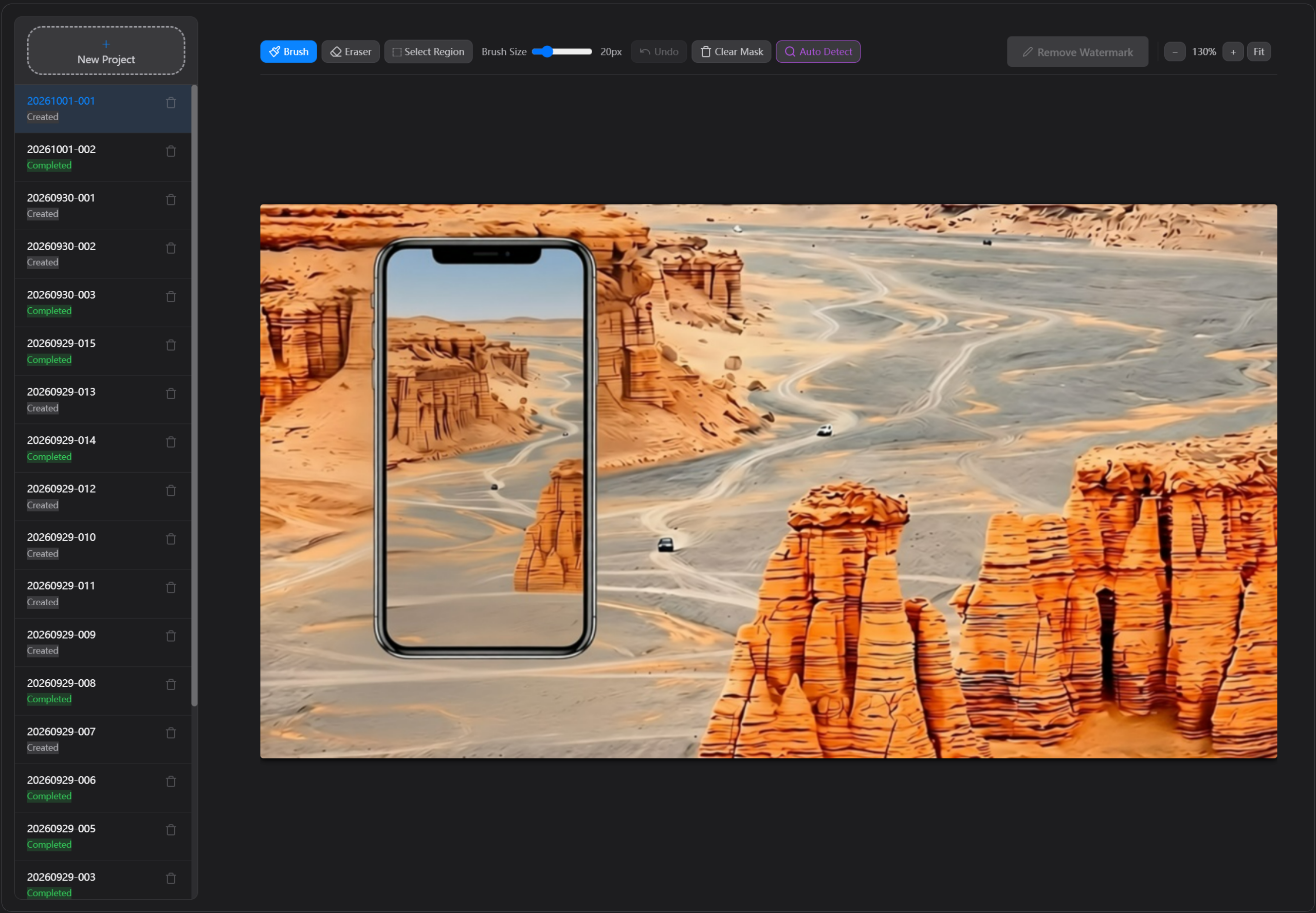
Step 2: Mark the Watermark
You have three ways to tell DeepVideo where the watermark is
🖌️ Option A: Brush Tool (Manual)
Best for: Irregular shapes, logos, small watermarks
- Select the Brush tool (🖌 icon)
- Adjust Brush Size using the slider (5–80px)
- Paint over the watermark area — strokes appear as semi-transparent red overlay
- Use the Eraser tool to fix any mistakes
- Use Undo to step back (up to 20 steps)
🤖 Option B: Auto Detect (AI-Powered)
Best for: Text watermarks, copyright notices
- Click Auto Detect
- AI scans the image and highlights detected watermark areas
- A list of detected regions appears below the canvas
- Uncheck any region that isn’t actually a watermark
- Click only on a region to keep just that one
□ Option C: Select Region
Best for: Repeated watermarks that appear in the same position across multiple images
- Select the Region Select tool (□ icon)
- Draw a rectangle around a watermark area
- DeepVideo extracts this as a template
- It automatically finds the same watermark pattern in other areas or other images
Step 3: Adjust Your Selection
Before removing, make sure your mask is accurate
| Tool | What It Does |
|---|---|
| Brush | Paint over areas you want to remove |
| Eraser | Remove marks from areas you want to keep |
| Brush Size slider | Make the brush bigger or smaller |
| Undo | Undo your last stroke |
| Clear Mask | Start over — removes all marks |
| Zoom In / Out / Fit | Zoom into details for precise marking |
Step 4: Remove the Watermark
One click to clean your image or video
Processing
Click the Remove Watermark button (green). Wait for processing — a progress indicator shows the status.
When done, you’ll see a side-by-side comparison:
- Source — your original image
- Result — the cleaned image
Step 5: Review and Save
Verify the result and save your cleaned file
Final Review
- ✓ Toggle Show Mask / Hide Mask to see exactly what was removed
- ✓ Compare Source and Result side by side
- ✓ Click Open Folder to find your cleaned file
Output Location
The cleaned file is saved in the same folder as your original file:
{original_name}_inpainted.png
For videos, the output is:
{original_name}_nowm.mp4