
Step 1: Create New Project
Open DeepVideo, click Watermark Removal in the sidebar, and switch to Videos mode
Create New Project
Click New Project in the left panel. Select your video file from the file browser. The video’s first frame appears on the canvas, ready for editing.
Step 2: Mark the Watermark
You have three ways to tell DeepVideo where the watermark is
🖌️ Option A: Brush Tool (Manual)
Best for: Irregular shapes, moving watermarks, logos
- Select the Brush tool (🖌 icon)
- Adjust Brush Size using the slider (5–80px)
- Paint over the watermark area on the first frame — strokes appear as semi-transparent red overlay
- Use the Eraser tool to fix any mistakes
- Use Undo to step back (up to 20 steps)
🤖 Option B: Auto Detect (AI-Powered)
Best for: Text watermarks, copyright notices, fixed-position logos
- Click Auto Detect
- AI scans 5 frames across your video
- Identifies watermark areas that appear consistently
- A list of detected regions appears below the canvas
- Uncheck any region that isn’t actually a watermark
- Click Only on a region to keep just that one
□ Option C: Select Region (Template Matching)
Best for: Repeated watermarks that appear in the same position across multiple videos
- Select the Region Select tool (□ icon)
- Draw a rectangle around a watermark area
- DeepVideo extracts this as a template
- It automatically finds the same watermark pattern in other areas or other videos
Step 3: Adjust Your Selection
Before removing, make sure your mask is accurate
| Tool | What It Does |
|---|---|
| Brush | Paint over areas you want to remove |
| Eraser | Remove marks from areas you want to keep |
| Brush Size slider | Make the brush bigger or smaller |
| Undo | Undo your last brush stroke |
| Clear Mask | Start over — removes all marks |
| Zoom In / Out / Fit | Zoom into details for precise marking |
Step 4: Remove the Watermark
One click to clean your video
Processing
Click the Remove Watermark button (green). Wait for processing — a progress indicator shows the status.
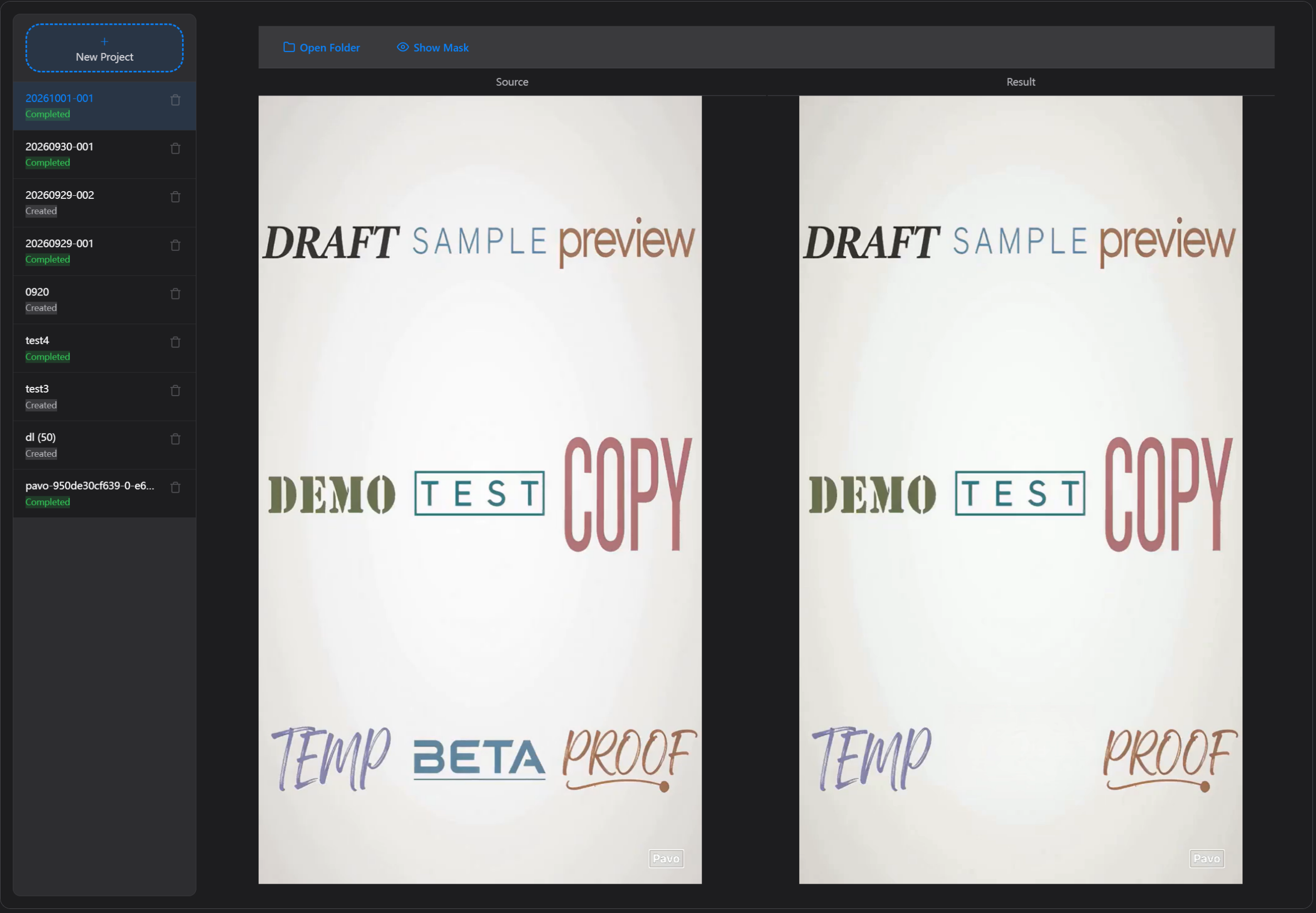
When done, you’ll see a side-by-side comparison:
- Source — your original video frame
- Result — the cleaned video frame
Step 5: Review and Save
Verify the result and save your cleaned video
Final Review
- ✓ Toggle Show Mask / Hide Mask to see exactly what was removed
- ✓ Compare Source and Result side by side
- ✓ Click Open Folder to find your cleaned video
Output Location
The cleaned video is saved in the same folder as your original file:
{original_name}_nowm.mp4
Audio is preserved completely — only the visual watermark is removed.