
Overview
Advanced Translation is a management page that lets you create and maintain two resources that improve translation quality
Glossary
Define term pairs (source → target) that the translator must use consistently
- Term pair management
- CSV import/export
- Language pair matching
- Auto-enforcement in translation
Custom Instructions
Write free-text rules that guide translation style, tone, or domain-specific behavior
- Style presets (formal, casual, etc.)
- Domain selection (medical, legal, etc.)
- Free-text instruction editor
- Per-project application
How it works: These resources are selected per project in the editor’s left parameter panel, then applied automatically when the pipeline runs
step_translate()
Page Layout
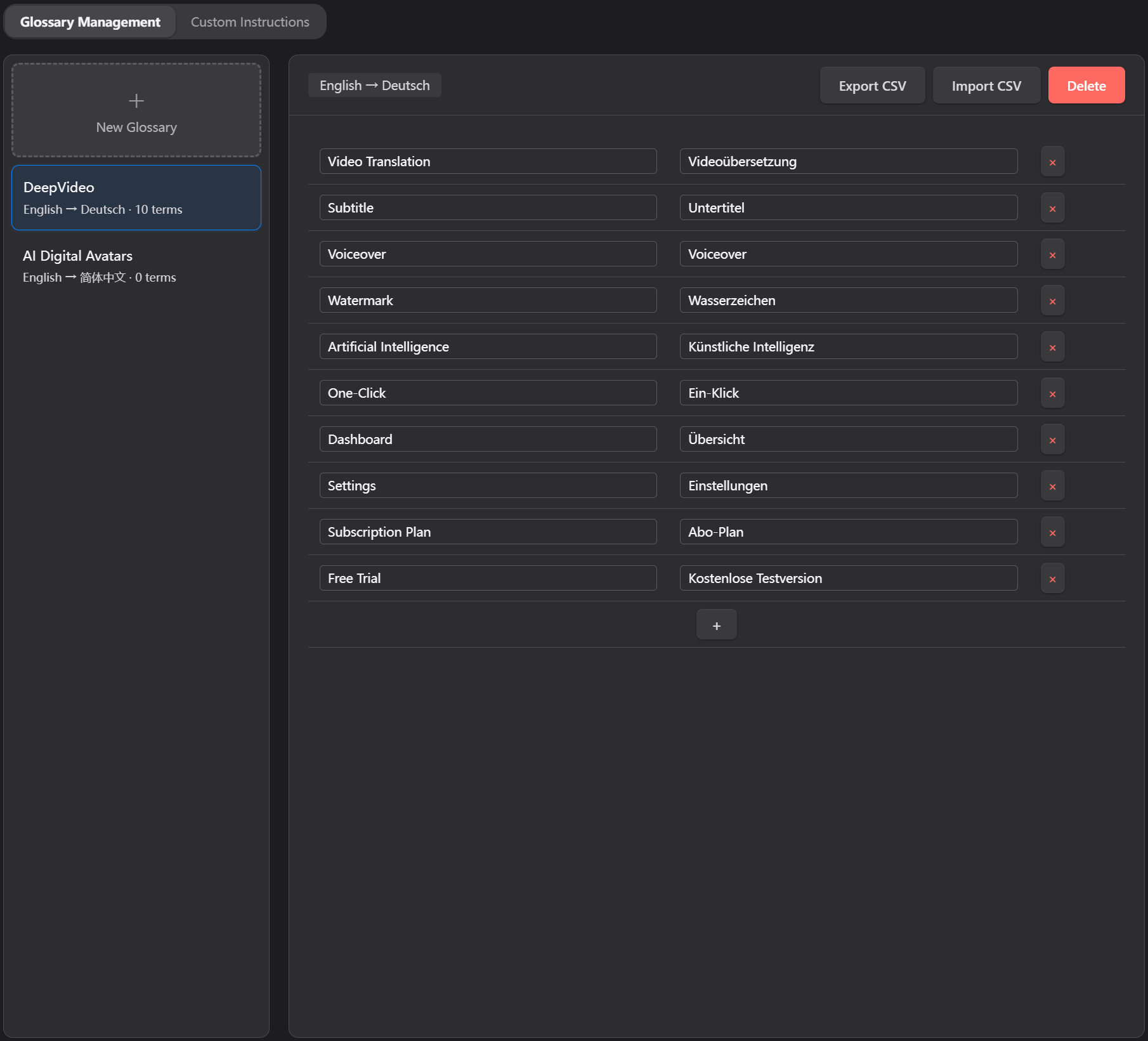
Glossary Management
Create and manage terminology glossaries for consistent translations
1
Create a Glossary
- Click “+ New Glossary” in the sidebar
- Fill in the dialog:
- Glossary Name — e.g. “Medical Terms EN→ZH”
- Source Language — dropdown, 20 languages
- Target Language — dropdown, 20 languages
- Click “Create” — the new glossary is auto-selected
2
Add Terms
- Select a glossary from the sidebar
- Type directly into Source Term and Target Term fields
- Changes auto-save after 800ms debounce
- Click “+” button to add more rows
3
Import / Export CSV
Import CSV:
- Click “Import CSV”
- Format:
source,targetper line (CSV format) - Header row is skipped
Export CSV:
- Click “Export CSV”
- All terms exported as CSV
4
Delete a Glossary
- Click “Delete” button (red, top-right)
- Confirm in popup dialog
- Glossary is permanently deleted
Supported Languages (20)
Ready to Improve Your Translation Quality?
Start using Advanced Translation features today. Create glossaries, define custom instructions, and ensure consistent, professional translations.