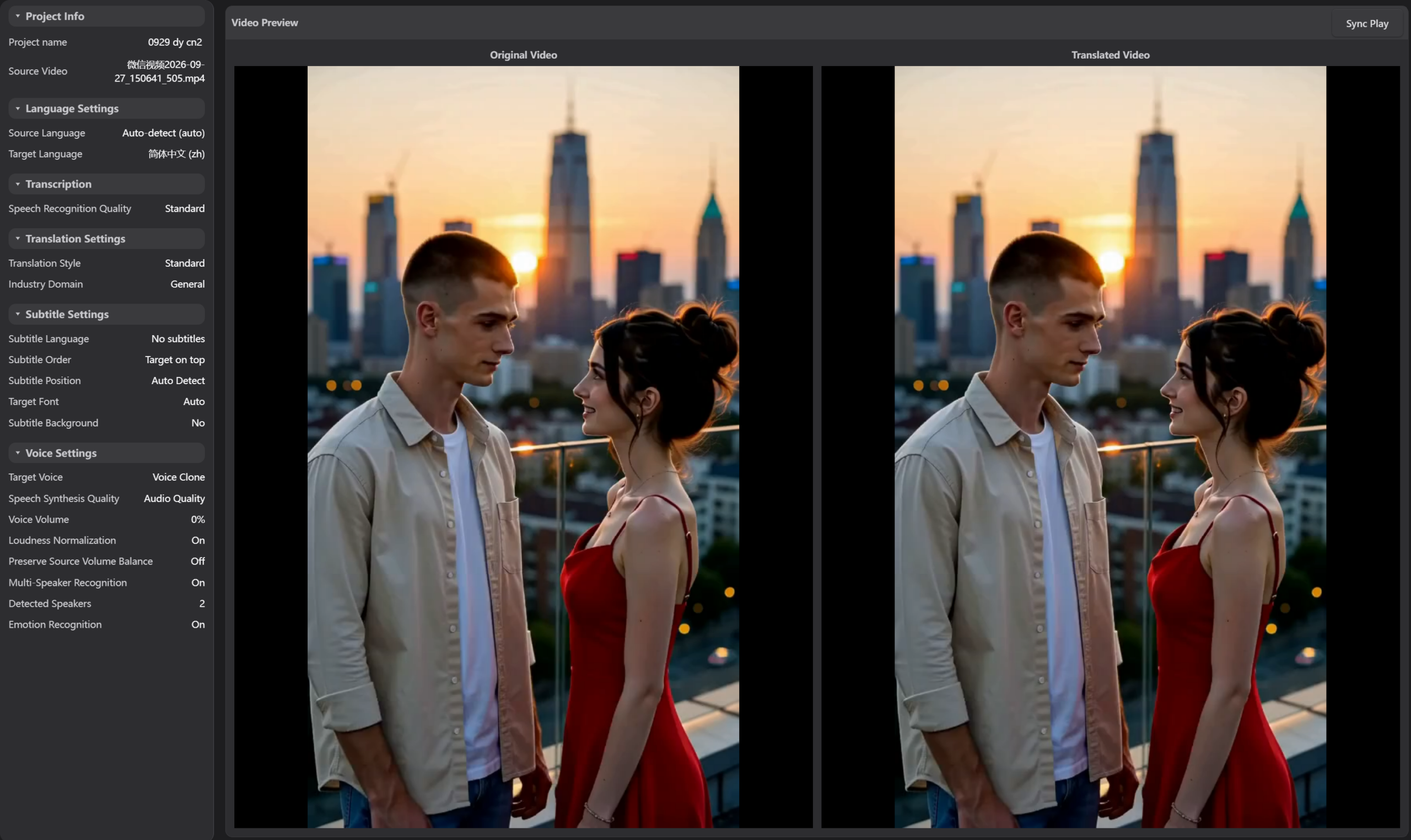
Quick vs. Expert — Which Mode?
DeepVideo offers two translation modes to match your workflow.
| Feature | Quick Translation | Expert Translation |
|---|---|---|
| Setup Time | Minimal — defaults work | Full control over all settings |
| Processing | Fully automated, hands-off | Interactive — pause & edit at any step |
| Batch Processing | ✓ Multiple videos at once | One project at a time |
| Multi-Speaker Control | Auto-detect only | Manual speaker assignment + voice mapping |
| Voice Cloning | ✗ Not available | ✓ Upload reference audio |
| Custom Glossary | ✗ Not available | ✓ Define industry terminology |
| Emotion Recognition | ✗ Not available | ✓ Preserve emotional tone |
| Subtitle Editing | Basic | Full editor with preview |
| Best For | Fast turnaround, bulk content | Professional quality, complex projects |
How It Works
From upload to finished video in 6 automated steps.
Audio Extraction
Isolates audio track in seconds
Vocal Separation
AI separates voice from music & SFX
Speech Recognition
Whisper AI transcribes original language
Smart Translation
Context-aware with glossary support
Voice Synthesis
Natural dubbing in target language
Video Merge
Combines audio, background & subtitles
Performance
Fast enough for daily workflows. Powerful enough for production.
Benchmarked on Intel i5 CPU. GPU acceleration available for NVIDIA and AMD cards — up to 3x faster.
Getting Started
Your translated video will be ready in minutes, not days.
Open DeepVideo and click the menu – Expert Video Translation
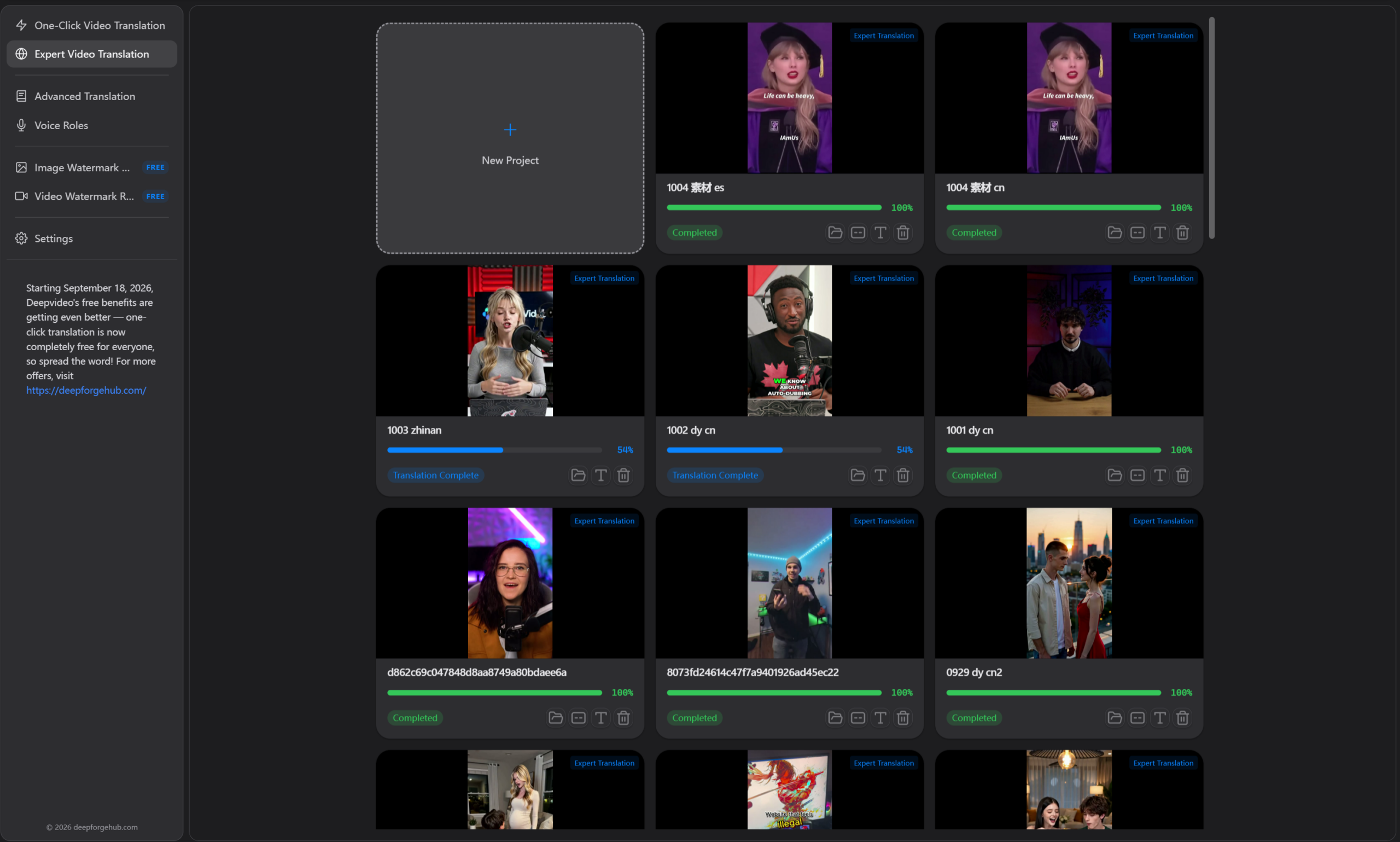
Click “New Project” to open the Create Project dialog box.
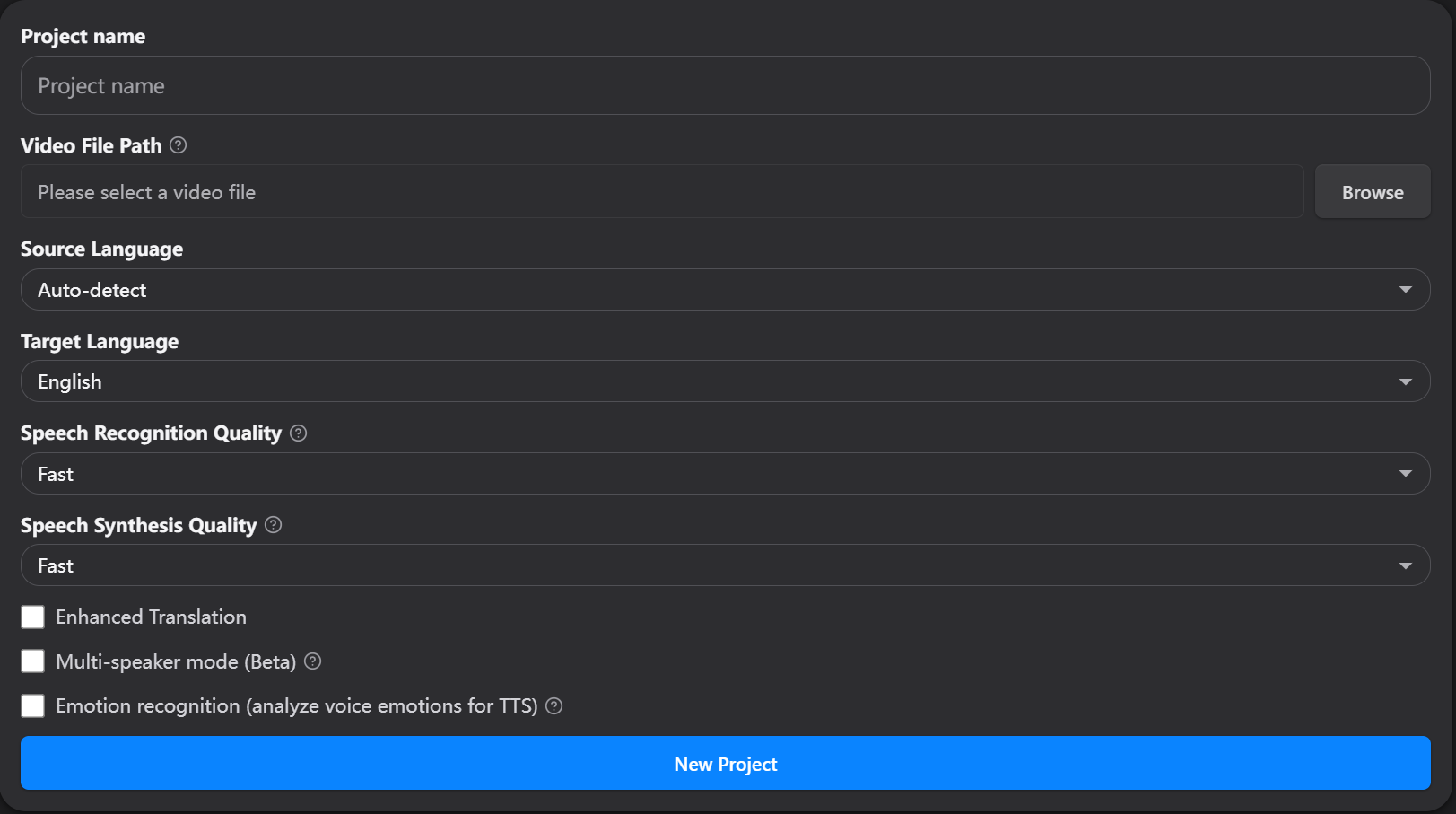
Import Your Video – Drag and drop or use the file browser
Choose Target Language – Select from 20+ language options
Select from 20+ language options – Or upload a reference for voice cloning
Click “New Project” – That’s it — your video will be processing
Go to the main video dubbing editing page
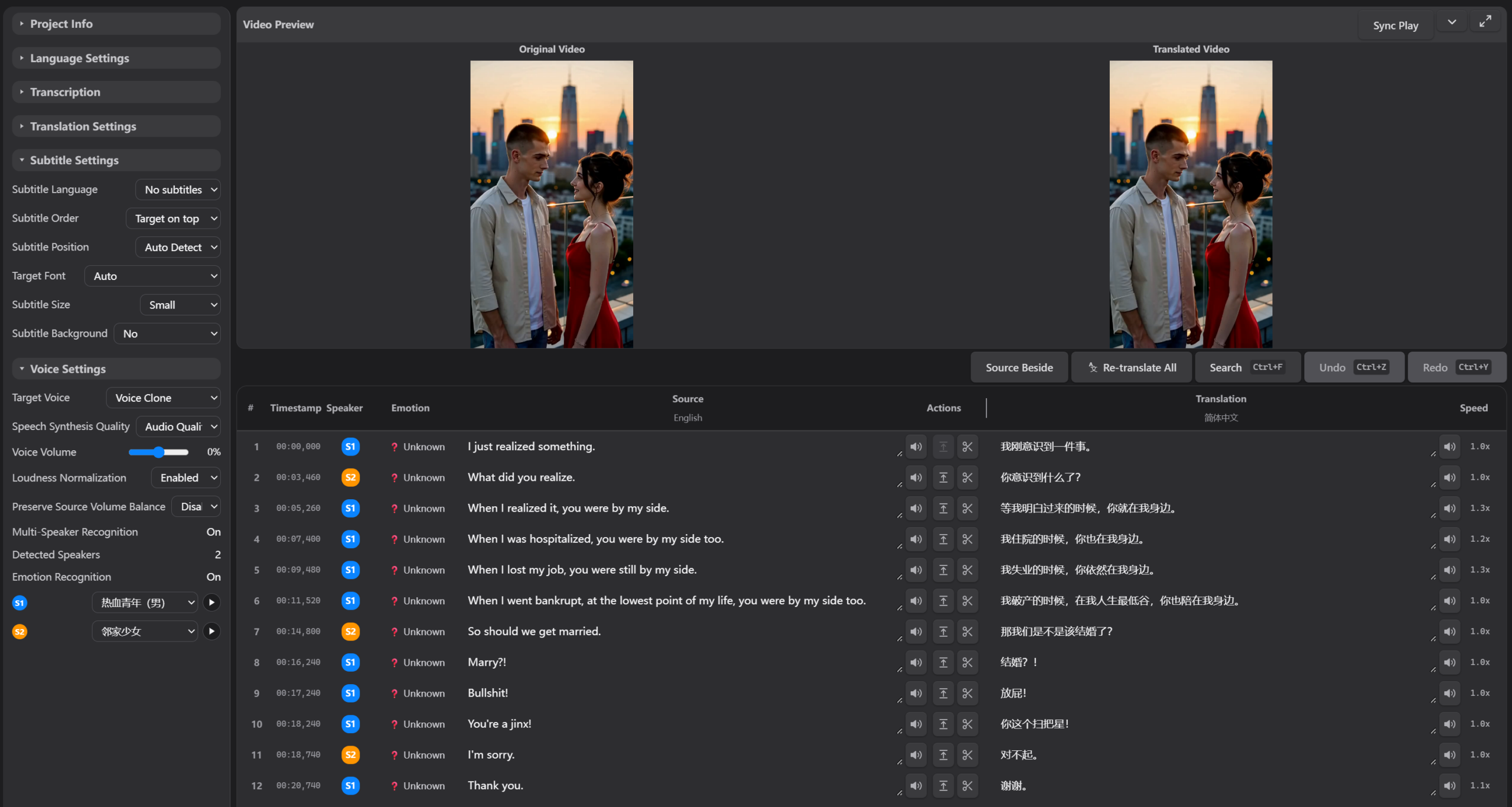
Below are instructions for each action on this page:
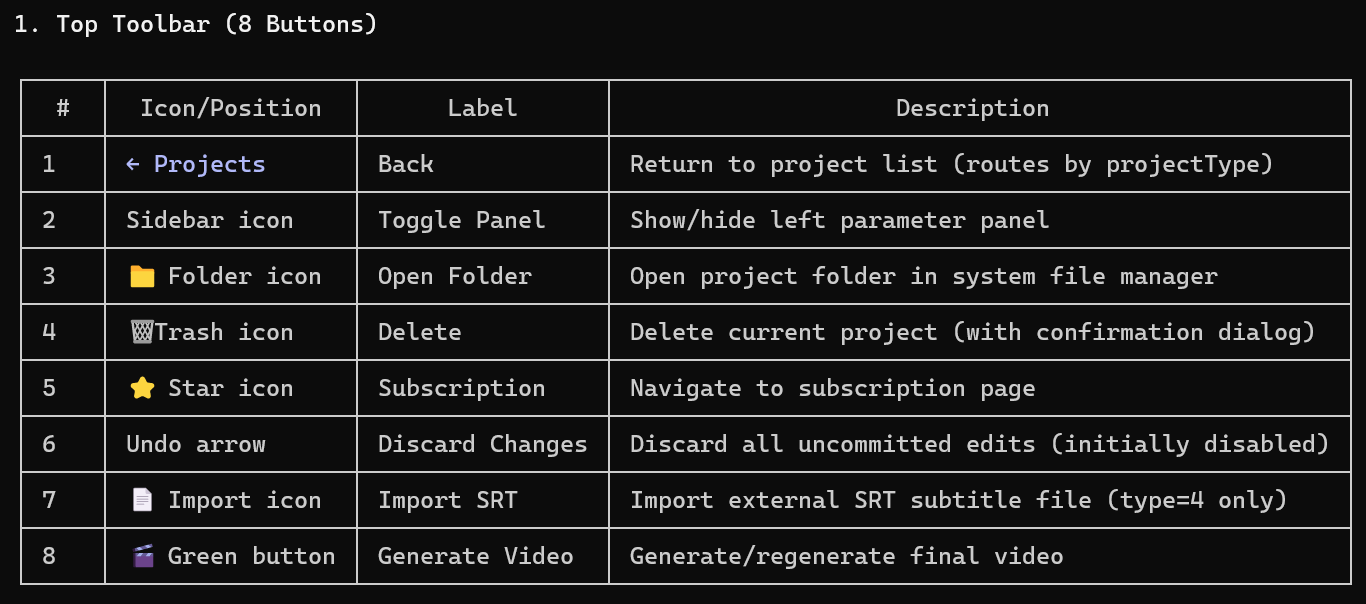
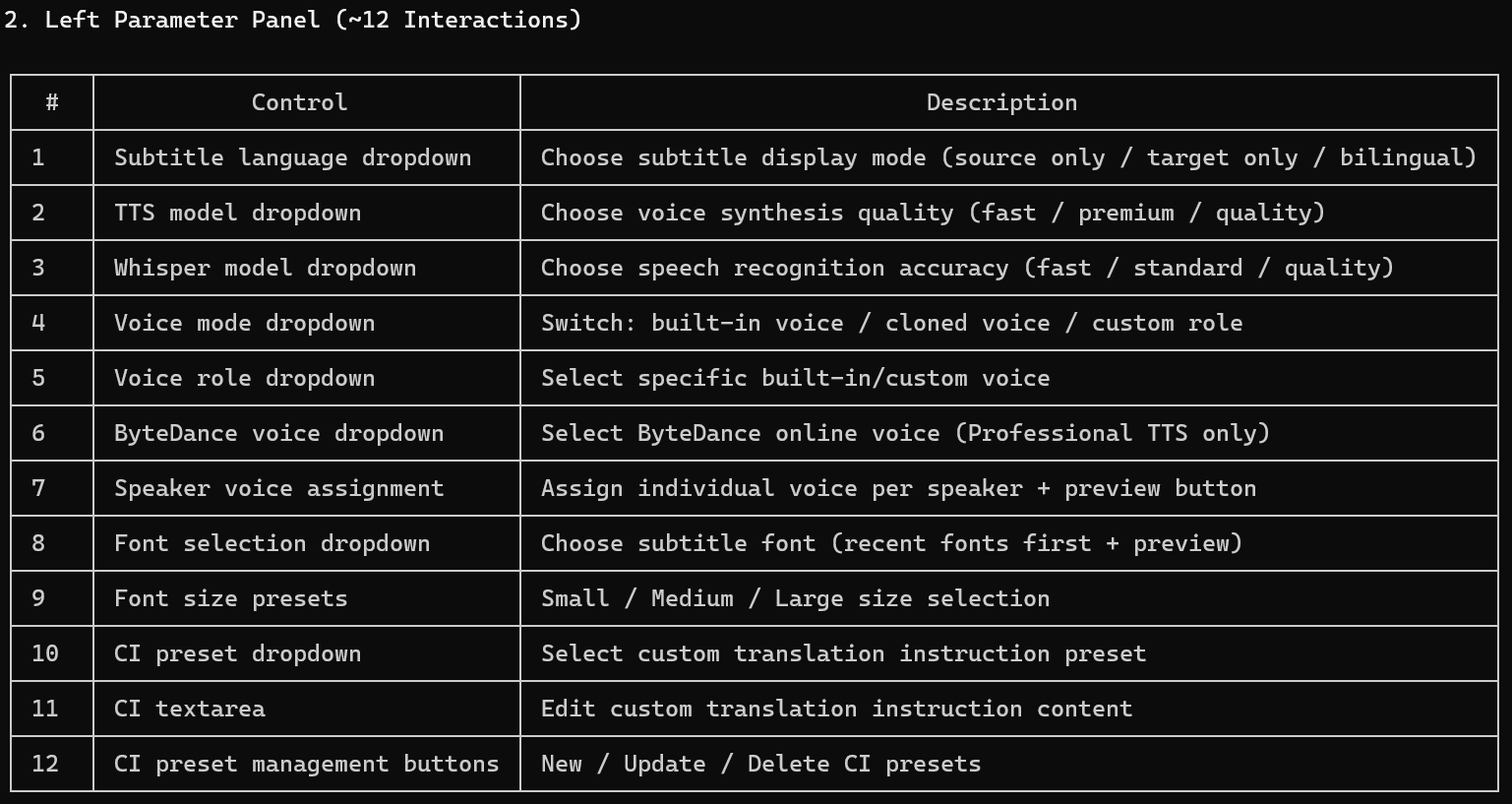
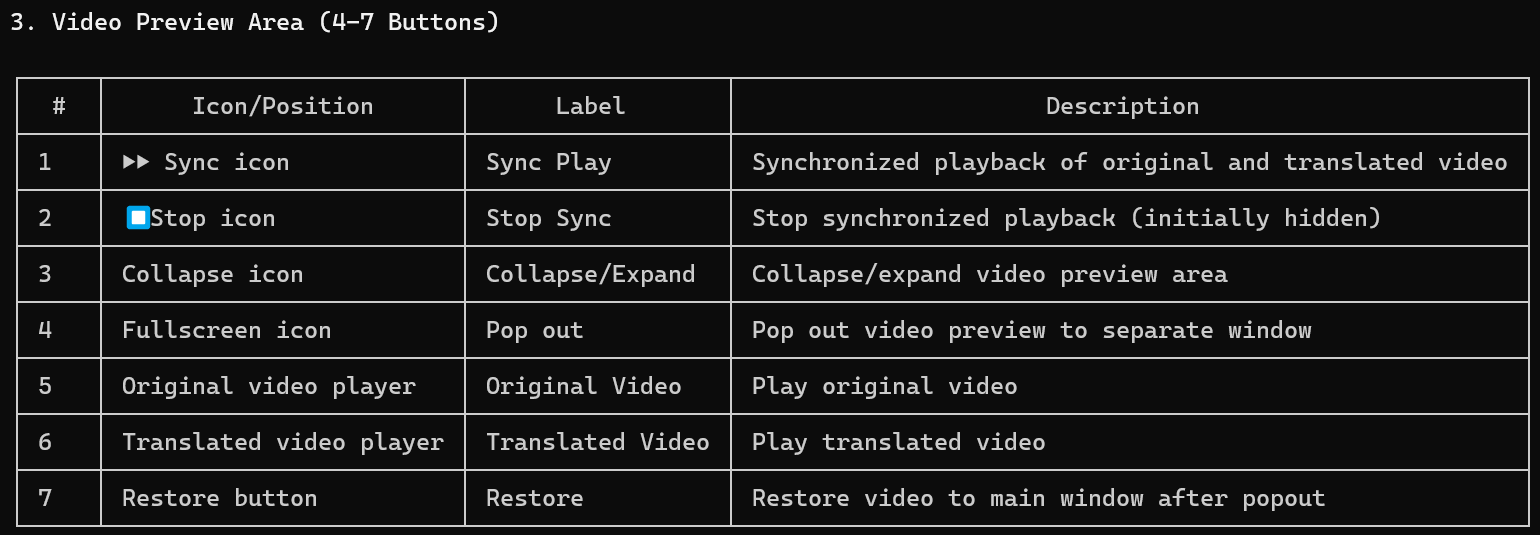
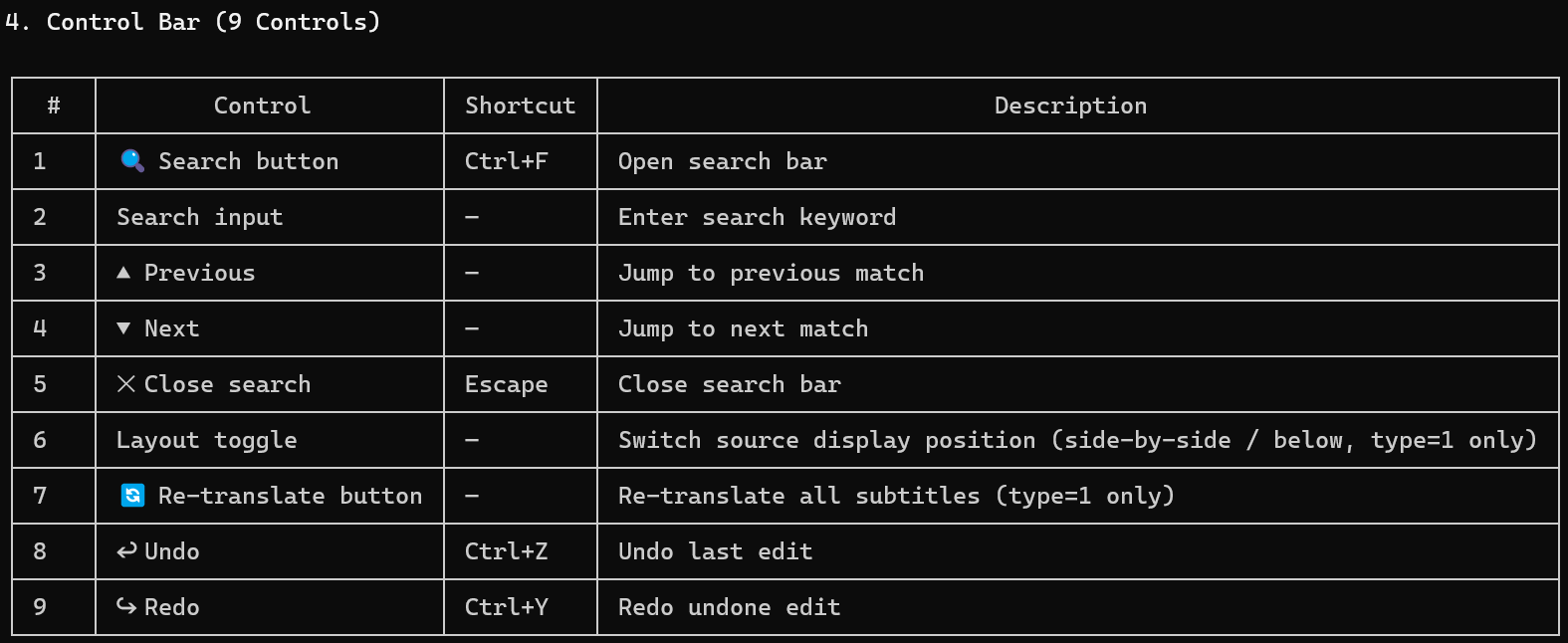
Wait for automatic processing to complete.